 \n
\n
A New Revolution in Coding: claude code Remote Control
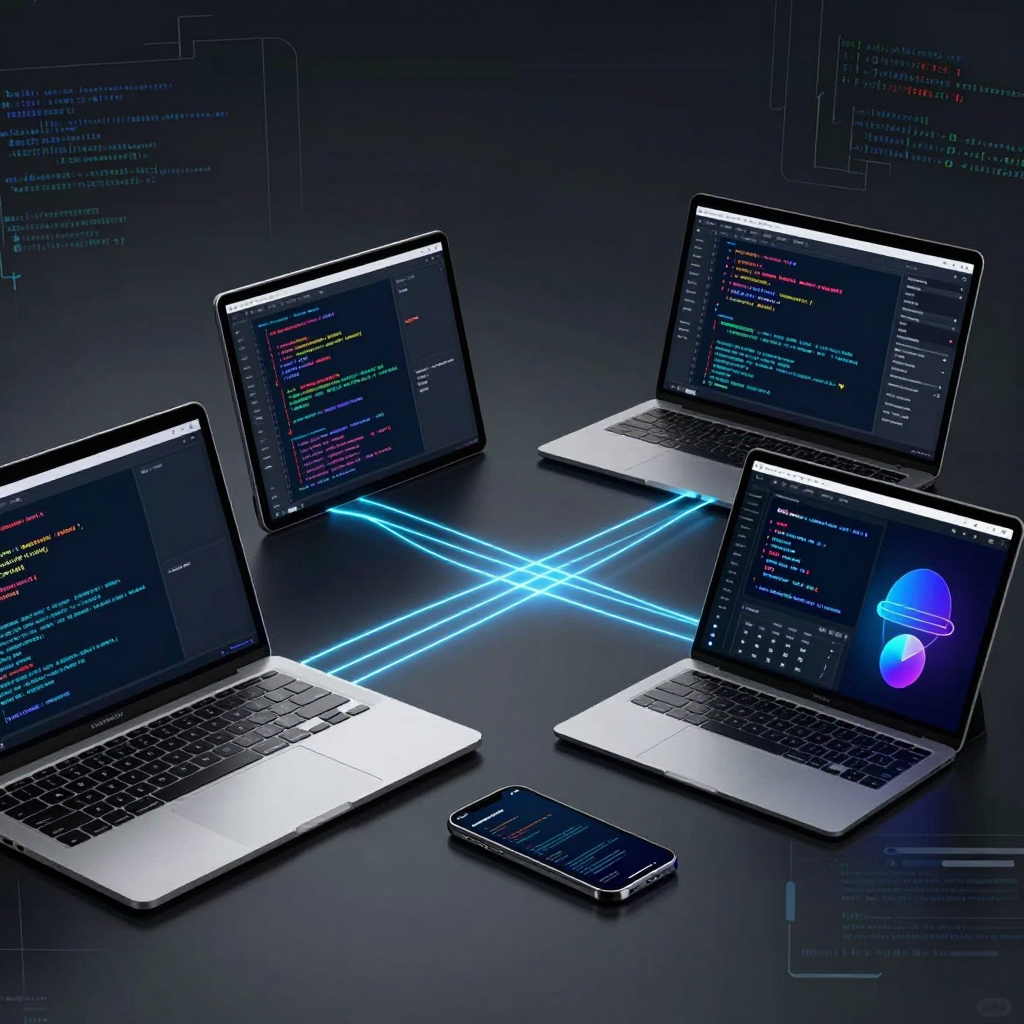
Imagine if you could seamlessly continue your coding sessions, which you usually run locally, simply by switching to your phone or tablet, anytime and anywhere. Anthropic’s claude code Remote Control makes this vision a reality. The core idea is straightforward: while coding continues to run locally, you can access the same session from other devices and keep the conversation and work flowing without interruption.
What Sets claude code Remote Control Apart: A Local-First Architecture
Remote Control is not about “opening a fresh coding environment on the web.” Instead, it’s an approach that extends your existing Claude Code session running on your current computer as a remote screen. Thanks to this design, the following remain intact:
- Access to your local filesystem: Your project directories, file modifications, build, and test pipelines all operate based on your local machine
- Preservation of MCP server and project configurations: Tools and settings configured locally are perfectly available remotely as well
- Minimal data movement: Processing happens locally; it’s not about “uploading your work to the cloud for execution”
In other words, external devices (mobile/tablet/browser) act as windows into your local session, not independent development environments. This enables natural workflows like “checking a session open on your work laptop via phone while commuting, then continuing on your tablet once you’re home.”
Real-Time Synchronization Across Devices: A Smooth claude code Remote Control Experience
claude code Remote Control ensures real-time synchronization of conversations across connected devices. Whether you type in the terminal, review on your laptop browser, or leave comments on your phone, the session context stays consistent.
A key practical feature is the connection resilience:
- Even if your network briefly drops, or
- If your laptop goes to sleep,
the connection is designed to automatically restore and keep your flow going. However, note that sessions may time out after about 10 minutes of prolonged network disconnection, so it’s wise to be mindful of this during long travels or unstable connections.
Getting Started: Spark Up claude code Remote Control with a Session URL or QR Code
Starting is simple. Run the following command in your terminal to receive both a session URL and a QR code:
claude remote-control
Scan the QR code to open the session instantly on your mobile, or visit claude.ai/code in your browser to access the session list.
If you’re already coding, it gets even easier:
- Typing
/rcwithin an active session enables remote access without losing your conversation history. - If launching it every time feels tedious, you can configure Remote Control as the default via the
/configcommand.
Security by Design: claude code Remote Control Works Without Opening Inbound Ports
Security is paramount in remote features, and claude code Remote Control is built with strong safeguards in mind:
- TLS-encrypted transmission: Traffic between your client (mobile/browser) and local session is protected by TLS, routed through the Anthropic API.
- No inbound ports open: Your local Claude Code only makes outbound HTTPS requests and never opens inbound ports on your PC accessible from the outside.
- Short-lived, purpose-specific credentials: Multiple temporary credentials are used separately, each expiring independently.
This is fundamentally different from “opening ports on your home or office PC for remote access,” aiming to strike an ideal balance between convenience and security for remote use.
Important Limitations: A Reality Check for claude code Remote Control in Production
Before you adopt it, keep these practical constraints in mind:
- Subscription requirement: Pro or Max plans are necessary; API keys alone won’t suffice. (Team/Enterprise plans are currently unsupported.)
- Single concurrent connection: Only one Remote Control connection is allowed at a time
- Session retention depends on terminal: The terminal must stay open to keep the session alive
- Multiple instances caution: Running multiple Claude Code instances creates separate environments and sessions
For enhanced stability, pairing claude code Remote Control with terminal multiplexers like tmux proves valuable in real-world use. It simplifies session management even in case of screen locks or temporary network glitches.
The Powerful Freedom Brought by claude code Remote Control’s Local-Centric Architecture
What sets Remote Control running directly on my local machine instead of the cloud apart from traditional web-based coding tools? The core design principle is “remote manipulation, but execution and data processing remain entirely local.” claude code Remote Control provides a browser or mobile interface, yet the actual coding session runs continuously on your local machine—the remote interface functions merely as a window connecting to that session.
What “Local-First” Means in claude code Remote Control
Typical web-based solutions run containers or runtimes on servers (cloud), streaming or providing API access to results. In contrast, claude code Remote Control adopts the following approach:
- The execution happens locally, not in the cloud
All processes—project builds, tests, linting, script execution—occur on your local machine. This means performance, environment, and permissions remain exactly as on your own development PC. - Seamless use of your local filesystem and development settings even when remote
When accessing remotely, you’re not working on a cloned project in the cloud but directly on your local directory—including MCP server, project config, local dependencies—cutting down on reproducing or syncing environments. - Remote devices serve only as ‘session UI’
Whether on a phone, tablet, or another browser, these devices send messages to and receive responses from the session running locally. This allows you to switch devices while continuing the same session, with conversations synchronizing in real time.
The Technical Secret Behind claude code Remote Control: Network and Security Design
Enabling “running locally while accessible externally” hinges on smart security and network design. claude code Remote Control strikes the balance by:
- Operating without any inbound ports open
Local sessions do not accept direct incoming connections to your PC. Instead, only outbound HTTPS requests are made. This reduces network configuration hassle and shrinks the attack surface. - TLS-encrypted transport + short-lived credentials
All traffic between clients (mobile/web) and the local session is protected by TLS, with purpose-specific, ephemeral credentials that expire. This minimizes risks versus maintaining long-term tokens. - A relaying model rather than ‘cloud execution’
Traffic routes through the Anthropic API, but actual processing happens locally. Unlike cloud workspace tools that require uploading and running code in the cloud, this maintains a local-first flow with a remote UI merely attached.
How It Differs from Web-Based Coding Environments: Where Freedom Rises
The advantages of this local-centric architecture go far beyond “it runs on my PC.”
- Environment fidelity: Use your toolchain, private dependencies, internal proxies/authentication, and custom build steps exactly as you have them set up locally.
- Minimal data movement: Continue working remotely without shifting your project into a cloud workspace, simplifying data pathways.
- Seamless continuity: Send messages from terminal, browser, or mobile—all synchronize in the same session, making “moving locations” instantaneous.
In short, claude code Remote Control is not about “recreating a development environment in the cloud” like web alternatives. It’s about securely extending your fully realized local development environment to remote access. This difference translates directly into gaps in productivity, security, and freedom of configuration.
Continuous Work Anytime, Anywhere Across Devices with claude code Remote Control
What if your coding conversations were shared in real-time across your phone, tablet, and terminal? And what if the flow never broke, even in patchy network environments like the subway? claude code Remote Control realizes the goal of “continuing the same session across different devices” not through simple screen mirroring, but via conversation and state synchronization.
Multiple Devices “Simultaneously” Viewing the Same Session
At the heart of Remote Control is the idea that remote devices don’t open separate cloud-based development environments — instead, they attach to the Claude Code session running on your local machine like another ‘window.’
This means your project file system, MCP server, and other local settings remain on your machine, while your web or mobile devices connect to that same session, sharing an identical conversation context and workflow. Starting work on a laptop and picking it up on a phone no longer means “explaining everything from scratch.”
Real-Time Synchronization: Conversations Are “Shared,” Not Just Replicated
Synchronization across devices goes beyond copying messages. Even if you’re connected from multiple devices, all messages immediately update within the same session, enabling fluid workflows like:
- Developing a feature in the laptop terminal
- Adding design questions or refactoring instructions on the go from your phone on the same session
- Resuming work in the office by reopening the session on a tablet or browser, based on the continuous conversation
Crucially, this isn’t “branching conversations by device” — the session is a single unified timeline, not something you sync later like in team note apps. It carries your exact, live progress forward.
Seamless Flow Even Over Unstable Networks
Networks aren’t always reliable. Remote Control is built with this reality in mind, supporting automatic reconnection even if you lose connection or your laptop goes to sleep. Brief communication drops don’t mean “session ended,” and when you return, you pick up right where you left off in the same conversation context.
However, there are limits. Sessions may timeout and the process end if your network is down for more than about 10 minutes. In situations like long-distance travel where disconnections can be extended, it’s practically advantageous to use terminal multiplexers like tmux together for session stability.
Synchronization Constraints from an Operational Viewpoint
While the sync experience is smooth, some constraints should be understood upfront:
- Only one Remote Control connection at a time is supported: It’s fine to switch between devices, but simultaneous multi-device connections can be restricted.
- The terminal must remain open to maintain the session: The local session process must stay alive for the remote connections to continue.
- Each additional Claude Code instance runs as a separate session: Opening multiple instances creates independent environments and conversations.
In summary, the synchronization of claude code Remote Control centers on “continuity of the local session,” not “copying between devices.” Its greatest value lies in letting you seamlessly continue your work and thoughts exactly as they are — on the move, briefly disconnected, and reconnected again.
The Completion of Secure Yet Free Remote Control with claude code Remote Control
To make "remote access from local" possible, strong security design is as essential as convenience. claude code Remote Control offers remote access while maintaining a local-first architecture where files and code never leave your local environment to the cloud. So how can safety be guaranteed even when connecting from a phone, tablet, or another browser? The secret lies in a transmission path design nearly equivalent to end-to-end protection, short-lived credentials, and a network model requiring no inbound ports.
How claude code Remote Control’s Local-First Architecture Enhances Security
The starting point of Remote Control is simple. Coding sessions continue running on your local machine, while the web/mobile screen acts as a “remote control window” to manipulate that session. This setup means:
- Project filesystems, MCP servers, and all development settings stay intact on your local machine.
- Remote devices only “access” the local session; they never “transfer” work contents to any separate server.
- As a result, even when using remote control, the security core remains fixed on your local execution environment, not the cloud.
In other words, the design structurally satisfies the fundamental security premise of minimal data movement.
claude code Remote Control’s TLS-Based Relay and No Inbound Port Connection
One of the most vulnerable moments in remote control is when an “external entryway directly into your PC” is created. claude code Remote Control avoids this by using the following model:
- Traffic between client devices (mobile/web) and the local session is transmitted protected by TLS encryption.
- Communication is relayed via the Anthropic API, with the local machine making outbound HTTPS requests only.
- Therefore, unlike typical remote access tools, there is no need to open inbound ports on your PC.
The advantages are clear: no requirement for router port forwarding, firewall exceptions, or static IP setups, while preventing an “open door” that can be arbitrarily scanned and exploited from outside.
Reducing Session Hijacking Risk with claude code Remote Control’s Short-Lived Credentials
Remote Control employs multiple short-lived credentials, each limited to a specific purpose and expiring independently. From a security perspective, this provides:
- Even if someone accidentally obtains a particular token, its limited lifespan restricts the scope of damage.
- Credentials are segmented by purpose, so even if one leaks, the chance of cascade escalation to full privileges is minimized.
- This structurally mitigates the common risk of “long-term token leaks” in persistent remote sessions.
Additionally, while automatic reconnection is supported if the network drops, sessions can time out after about 10 minutes of prolonged disconnection, reducing the chance of indefinitely open sessions.
Practical Safeguards and Operational Tips for claude code Remote Control
Security failures often come from operational practices, not just specs. To use Remote Control more safely and reliably, keep in mind:
- Only one Remote Control connection is supported at a time, preventing scattered access points that complicate management.
- The session requires the terminal to remain open, which helps users clearly recognize the session’s local liveliness.
- To prepare for screen locks or temporary network instability, using terminal multiplexers like tmux to protect sessions is practically advantageous.
In summary, claude code Remote Control does not just make remote control “easy”—it implements the “remote from local” concept securely by combining local execution, TLS protection, inbound port elimination, and short-lived credentials. Unlike typical remote access solutions that sacrifice security for convenience, its fundamental design minimizes the attack surface from the start, representing its greatest differentiation.
Brilliant Practical Tips and Strategies to Overcome Limitations of claude code Remote Control
Does allowing only one connection at a time reduce work efficiency? To get straight to the point: "There are constraints, but by changing how you operate, it can actually become more stable and faster." The key lies in accepting claude code Remote Control’s limitations (single connection, terminal must stay open, timeout on extended network disconnection) and building an uninterrupted session management and a rapid reconnection routine.
Turning the Single Connection Limit into a "Focus Mode" Operation
Remote Control supports only one connection at a time. Instead of trying to bypass this limitation by connecting multiple devices simultaneously, you can boost productivity by dividing roles:
- Laptop (or desktop) = the hub for execution/build/testing
Since the real file system, MCP server, and project settings are all local, keep “final execution” anchored locally. - Mobile/tablet = the remote for review, instruction, and response
When on the move, it’s more efficient to use your device not for coding itself but for “giving next-step commands and checking results.” For example: request test run → check logs → instruct next fix.
Using this method, the single connection becomes not a “bottleneck” but a device to prevent context scatter.
Is the Session Over When the Terminal Closes? Boost Session Survivability with tmux
Remote Control requires the terminal to remain open to keep the session alive. If the local terminal running Claude Code closes, the remote connection drops. In practice, the safest fix is using tmux (or screen).
Recommended workflow (concept):
- Create a tmux session locally
- Run Claude Code inside it
- Connect remotely as needed; lock or background the local screen
- Even if the network cuts briefly, the process keeps running inside tmux
Why is tmux crucial?
- Processes survive events like screen locking, terminal app closing, or SSH session dropping.
- While Remote Control supports auto-reconnect after network drops, local processes must be alive for reconnection to matter.
Checklist to Prepare for the “10-Minute+ Network Outage” Timeout
If network disconnects for around 10 minutes or more, the session may timeout and the process terminate. For environments with frequent brief disconnections (like subway or elevator), build these habits:
- Break work into small chunks: Issue commands in short loops like “run one test + one fix.”
- Queue long tasks locally: For lengthy builds or tests, send commands remotely but verify results only in stable connection zones.
- Save important output to files: For long logs, save results to files (e.g., report generation) and review after reconnecting.
Making QR Codes and Session URLs Your “Reconnection Routine”
The biggest time sink in real work is the interruption caused by “reconnecting.” The session URL/QR code that appears when you launch claude remote-control isn’t just a convenience; it’s a key tool to slash reconnection time.
- QR code = instant mobile switch
When you need to move away from the laptop, simply scan the QR code to immediately continue the same session on a mobile device. - Activate the ongoing session’s remote access with
/rc
This lets you “keep current conversations flowing” while turning on remote control, handy when remote access is needed during long tasks. - If the mobile app isn’t installed yet, use
/mobile
Quickly share an install QR code with your team on-site for easy setup and adoption.
Session Separation Strategy for Teams/Individuals Using Multiple Instances
Running multiple Claude Code instances creates separate environments and sessions. Leverage this by operating projects separately to reduce confusion:
- Project A = tmux session A + Claude instance A
- Project B = tmux session B + Claude instance B
Note, only one connection can be active at a time in Remote Control, so realistically only the “most important session” travels with you. However, keeping sessions separated lets you quickly switch locally and re-enable remote access with /rc cleanly when needed.
Conclusion: Acknowledging Constraints Actually Boosts Remote Productivity
claude code Remote Control isn’t so much a “collaboration tool swarming across multiple devices” as it is a safe remote control that lets you pick up your local dev environment anywhere. Its constraints—single connection, terminal persistence, network timeout—are real, but by using tmux to preserve sessions and QR codes plus /rc for reconnection routines, you can noticeably boost your practical productivity.
Comments
Post a Comment